

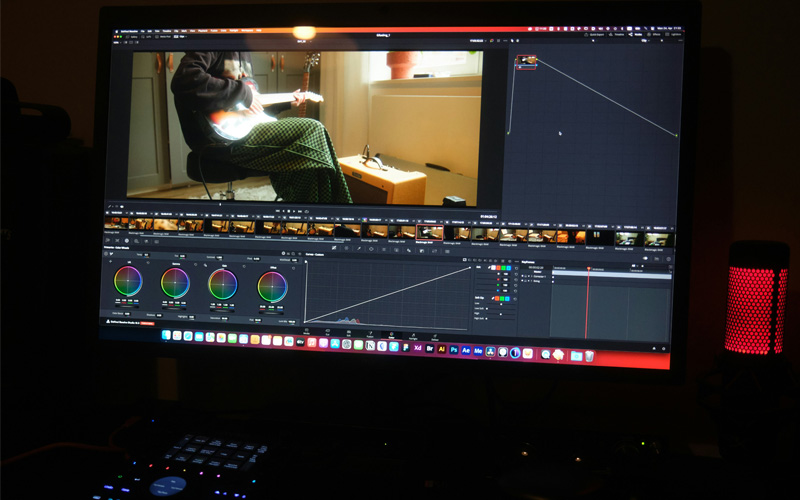
Unused Media Cleaner for DaVinci Resolve Studio
If you’ve ever worked on a big project in DaVinci Resolve, you know how quickly your hard drive fills up with unused video, audio, and image files. While Resolve includes a built-in Remove Unused Clips option, it only removes clips from the Media Pool – not from your actual hard drive. This means the files still sit on your disk, taking up valuable space.
Some editors use workarounds such as Smart Bins to locate unused media, but these still require manual verification and deletion, which can be both time-consuming and error-prone.
One-click solution
That’s why we created a simple but powerful Davinci Resolve Studio script that does the hard work for you. It scans through all timelines in your current project, identifies every file not in use, and gives you two clear options for cleanup:
✅ Delete unused files from your hard drive directly to the Recycle Bin/Trash, instantly freeing up space while keeping recovery options open if you change your mind.
or
✅ Move unused files into a dedicated subfolder (e.g. “Unused Files”), so you can review them later and permanently delete when ready.
You can also run it in a ‘dry mode’ which shows the affected files without moving / deleting anything.
This tool integrates smoothly into your DaVinci Resolve workflow and provides a level of control that Resolve itself doesn’t offer.
Best of all, the script is free and available as:
- Lightweight Installer (Windows/macOS) – for users who already have Python 3.8+ installed.
- Full Installer (with Python 3 included) – for users who want a complete one-click setup (Windows only)
Once installed the script shows as ‘Unused Media Cleaner’ under Workspace -> Scripts menu.
☕ Enjoying the plugin? Consider supporting our work with a coffee! https://buymeacoffee.com/groovelanddesigns
Watch the video below to see the plugin in action:
Davinci Resolve Unused Media Cleaner
Version: 2.0
Release Date: 20 February 2026
File Size: 2MB (installer only) // 28MB (installer + Python 3.10 bundle)
Requirements:
Windows 10 or later
MacOS 13 or later
Python 3.10+ Installation (can be installed manually or via attached bundle)
Davinci Resolve Studio (Paid Version) – doesn’t work in free version
How to install:
- Download the selected package using one of the links above
- Unzip and install the .exe file (Windows) or .pkg file (macOS)
- The installer will copy the script to the DaVinci Resolve Scripts folder
- Install Python 3.10+ (https://www.python.org/downloads/)
- IMPORTANT: In your Preferences go to System – General and ensure the External Scripting is on (Local/Network)
- The installer and script are unsigned, so your browser, operating system or anti-virus may warn you. This is normal.
How to use:
- Open DaVinci Resolve and start the project you want to clean
- Go to the Scripts menu and launch “Unused Media Cleaner”
- Choose options:
– Dry Run (recommended for first use/testing)
– Move unused clips to a folder (and choose its name) or delete directly to Recycle Bin
– Select which unused file types you want to remove (video, audio, images, or other) - Click “Scan & Clean Unused Media” to start
Enjoying the plugin?

Change Log
2.0
– NEW: Full cross-platform support! The script now runs natively on both macOS and Windows
– NEW: Native macOS Trash integration for safe media deletion
– NEW: Dynamic OS-aware GUI that adapts terminology (e.g., “Trash” vs “Recycle Bin”) based on your system
– OS-specific installers added for easier deployment
—————–
1.2
– FIX: Improved protection for Compound, Fusion, and Multicam clips — media files used within these are now safely preserved
– NEW: Integrated Update Checker — checks GitHub for new versions and downloads the latest .zip to your Downloads folder
– Improved detection and handling of nested timelines
– Optimized error handling and improved overall stability
– Verified compatibility with DaVinci Resolve Studio 18, 19, and 20
– Minor GUI layout and usability improvements
—————–
1.1
– Improved file type filtering (video, audio, image, other) and logging.
– Added summary of deleted/moved files by type in the log window.
– Clarified that the script works only with DaVinci Resolve Studio (paid version).
– Minor GUI improvements and bug fixes.
—————–
1.0 – Initial release with support for scanning timelines, moving files to subfolder or deleting them directly to recycle bin. Includes ‘Dry Run’ mode for testing purposes.